



Prerequisites
Before proceeding, ensure the Domotz Box is connected to a trunk port on your switch, configured as follows:
- Untagged (native VLAN): The network that provides internet access to the Domotz Box
- Tagged: Any additional VLANs you want the Domotz Box to monitor
Example — Cisco switch trunk port configuration:
interface GigabitEthernet1/0/1
 description Domotz Box
 switchport mode trunk
 switchport trunk native vlan 10
 switchport trunk allowed vlan 55,58,666
Adding VLANs from Web App
1. Login into the Domotz Web App (https://portal.domotz.com/webapp/)
2. From the Explorer select the Domotz Box collector you want to add VLANs
3. At the Left Menu (Setup Review panel) click on the pen icon next to the VLANs.
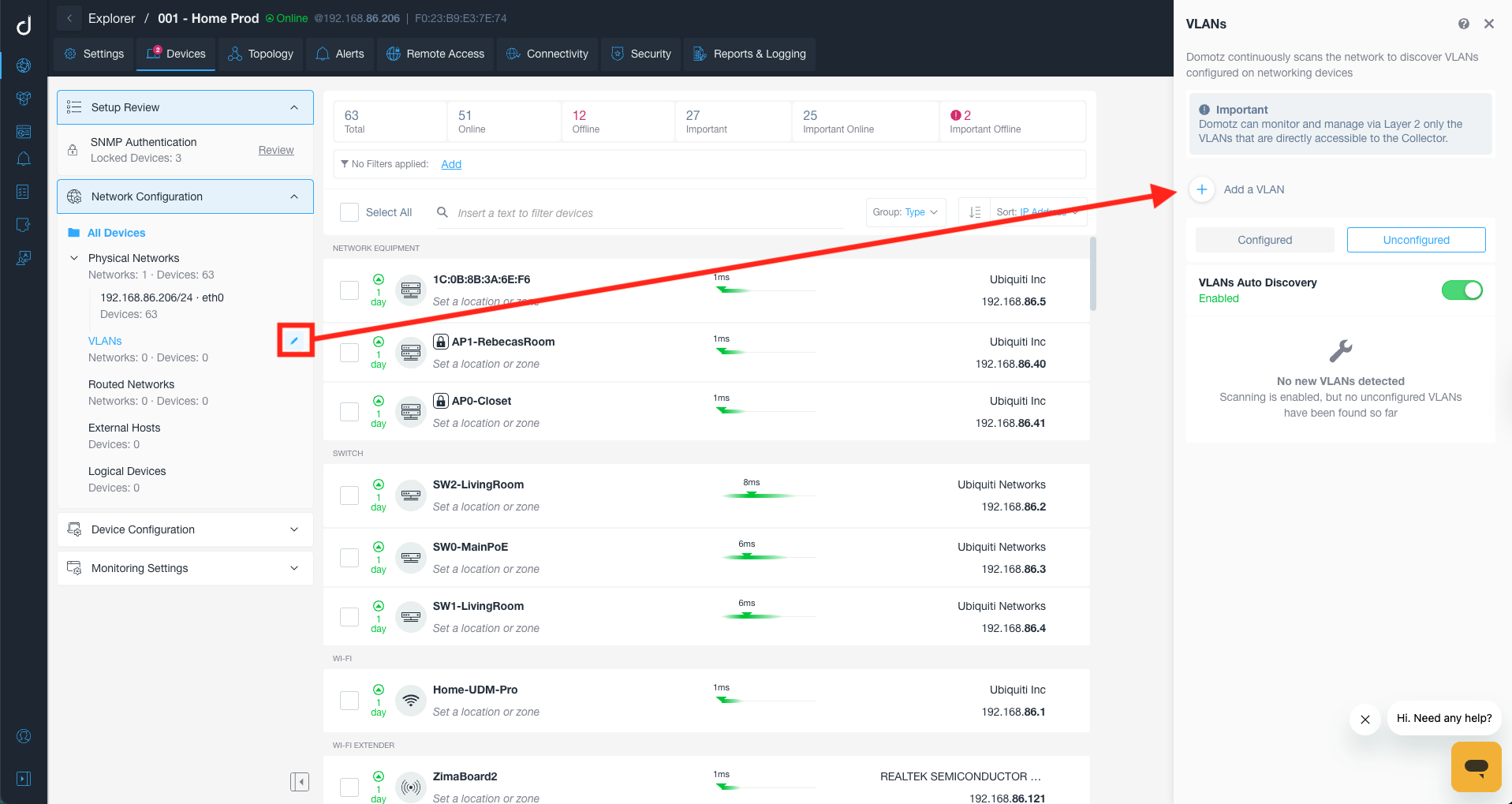
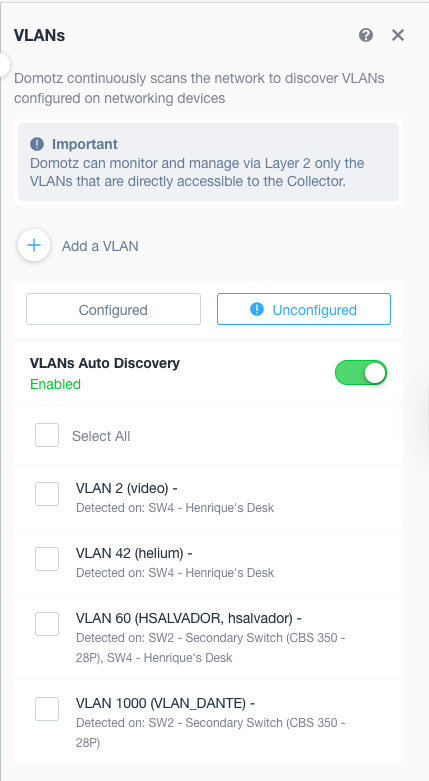
4. Click Add a VLAN, and fill in the VLAN ID and the IP Address/CIDR Notation you want the Domotz Box to use to communicate with other devices on that VLAN (e.g., 192.168.55.80/24). Ensure the address is not already in use, and avoid using the reserved network address of the subnet — on a /24 network, do not use 192.168.0.0/24; use a valid host address such as 192.168.0.10/24 instead.
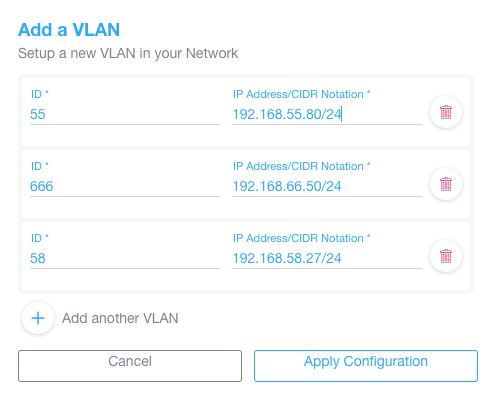
5. Click Apply Configuration and wait a few minutes for the changes to be applied to the Domotz Box. Once complete, any devices on the new VLAN will begin appearing in your Devices list.
Adding VLANs from Local Configuration Page
Open a browser and navigate to the HTTP service running on port 3000 of your Domotz Box:
http://[Domotz_Box_IP_Address]:3000 (e.g., http://192.168.0.100:3000)
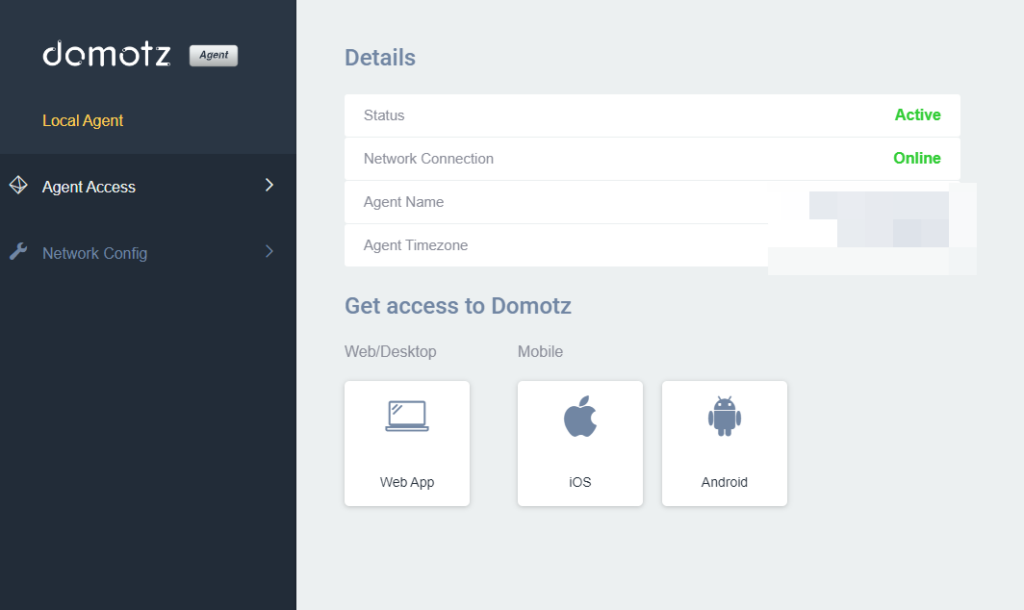
Once on the page, click Network Config to open the network configuration panel, then click the Config button next to the VLAN label.
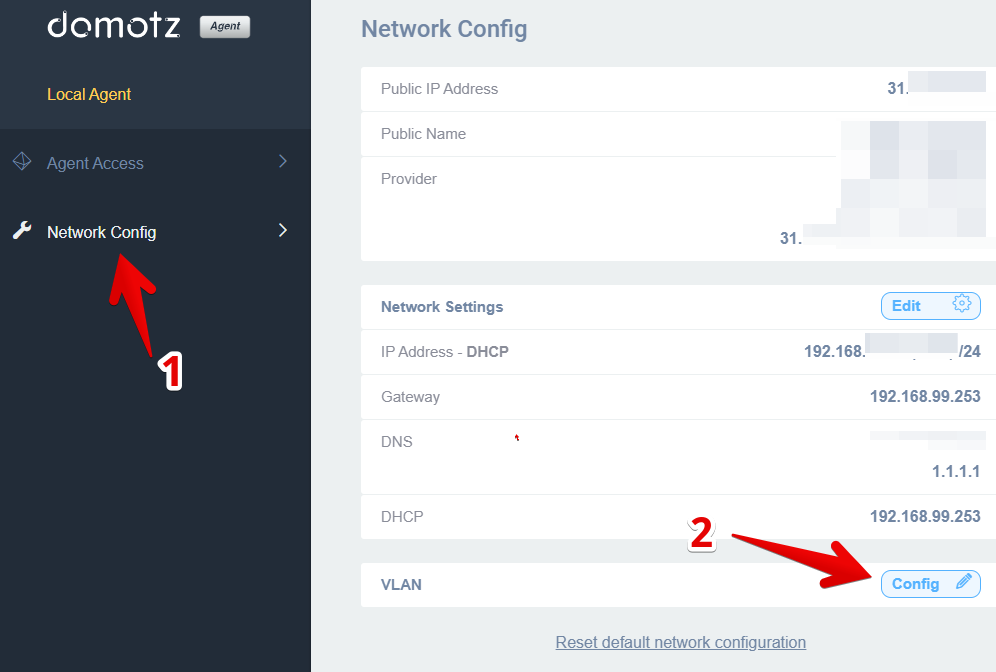
The VLAN configuration screen will appear.
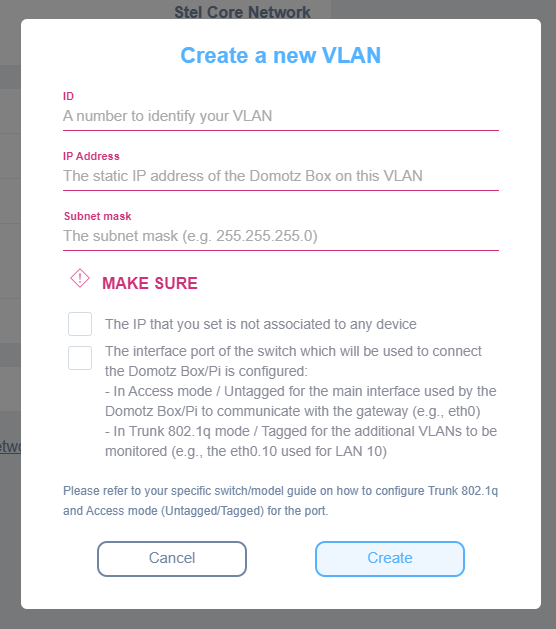
For each VLAN you want to add, provide the following three values:
1) VLAN ID — The tag/identification number of the VLAN you want to add.
2) Static IP Address — The IP address to assign to the Domotz Box’s network interface on that VLAN. Ensure the address is not already in use, and avoid using the network address of the subnet (e.g., on a /24 network, do not use 192.168.0.0 — this is the reserved network address; use a valid host address such as 192.168.0.10 instead).
3) Subnet Mask — The subnet mask corresponding to that VLAN.